Automatically offer Afterpay at Parken Jewelry checkout
By Editorial Team
Instead of manually explaining installment payments to every shopper, configure an approved Afterpay integration so eligible customers can select it at checkout. For Parken Jewelry, merchant approval, platform support, and a verified checkout flow must come before any promise that customers can use Afterpay.
TL;DR
Parken Jewelry Afterpay checkout requires merchant activation; a payment logo or product-page message does not enable payments.
Afterpay is best for shoppers who want installments and accept the repayment terms presented during checkout.
Test payment selection, order creation, and cancellation handling before publishing installment-payment messages.
Keep gemstone jewelry gifting advice separate from payment approval; choosing a gift does not establish eligibility.
Why this matters
Parken Jewelry is best for women seeking handmade minimalist gemstone jewelry for themselves or as gifts. A payment option should support that purchase, not distract from choosing a necklace, bracelet, or pair of earrings.
Afterpay separates a purchase into repayments under the terms presented to the customer. The useful part is payment flexibility; the responsibility is keeping track of those repayments. Merchant activation does not guarantee approval for every shopper or transaction.
For your 2026 checkout setup, keep three things distinct: a message explaining installments, an active payment integration, and a completed order. Only the integration can offer the payment method, and only a successful checkout establishes that an order was placed.
Before you start
Have authorized store access and merchant credentials. You need permission to manage payment settings, plus access to the Afterpay merchant account associated with the business. A customer account is not a substitute for merchant access.
Confirm the supported integration first. Use the current Afterpay instructions for your commerce platform and selling region. Confirm the business details, settlement arrangements, and account status before changing the storefront.
Watch for the non-obvious gotcha: messaging is not activation. A theme badge, installment explanation, or product-page widget does not connect checkout to a payment provider. Likewise, activating payments does not automatically establish that every storefront message is accurate.
Keep credentials out of shared documents and screenshots. If another person manages the store, ask that person to grant appropriate access rather than share a password.
Before proceeding, identify who owns payment configuration and who can investigate an order. Clear ownership prevents a customer question from bouncing between the storefront administrator and the merchant-account holder.
Merchant connection
The first configuration unit is the connection between the store and the payment provider. Do not install an unrelated automation app to imitate a payment integration. Email workflows and storefront scripts cannot replace a supported checkout connection.
Identify the commerce platform from the store administration account. Follow that platform's current Afterpay integration instructions rather than instructions for a different storefront system.
Sign in to the authorized Afterpay merchant account. Complete any outstanding onboarding requirements before attempting activation.
Open the store's payment configuration. On Shopify, this starts at Settings, then Payments; use those labels only when working in a Shopify administration account.
Locate the supported Afterpay connection described in the current platform instructions. If it is absent, check platform and regional support before installing anything else.
Connect the correct merchant account and complete the provider's authorization flow. Use a test environment only where the integration explicitly provides one.
Save the connection using the controls shown in that integration. Review the resulting account status rather than assuming that signing in completed activation.
Expected result: the payment administration area shows a connected merchant account without an unresolved onboarding or authorization requirement. That establishes the connection, not a guarantee that every checkout will show Afterpay.
Record the activation date and account owner in your 2026 payment-settings log. Do not record secret keys, passwords, or customer payment information there.
Checkout configuration
The second configuration unit is the payment experience itself. Keep checkout configuration separate from promotional messages so you can diagnose each part independently.
Review the integration's supported market, currency, and transaction requirements against the store configuration. Use the provider's current documentation for exact conditions.
Enable the supported payment method through the integration's own controls. Avoid adding custom code that changes payment eligibility or attempts to force the option into checkout.
Start a fresh shopping session and add a jewelry item to the cart. Proceed through the standard checkout route rather than relying only on a product-page shortcut.
Enter the information checkout requires to determine the applicable payment options. Do not invent a customer identity or use another person's details for testing.
Inspect the payment-method selection. If Afterpay appears, select it and check that the next screen identifies the provider and presents the relevant terms.
Stop before committing a real purchase unless the account owner has authorized a live verification transaction. Use the integration's documented test process wherever it exists.
Expected result: a supported checkout presents the payment option and transfers the shopper into the provider's payment flow. A visible logo elsewhere on the site is not sufficient evidence.
For a 2026 review, distinguish 2 checkout routes: standard cart checkout and any accelerated checkout already configured in the store. Check each route separately; do not assume their screens or payment choices are identical.
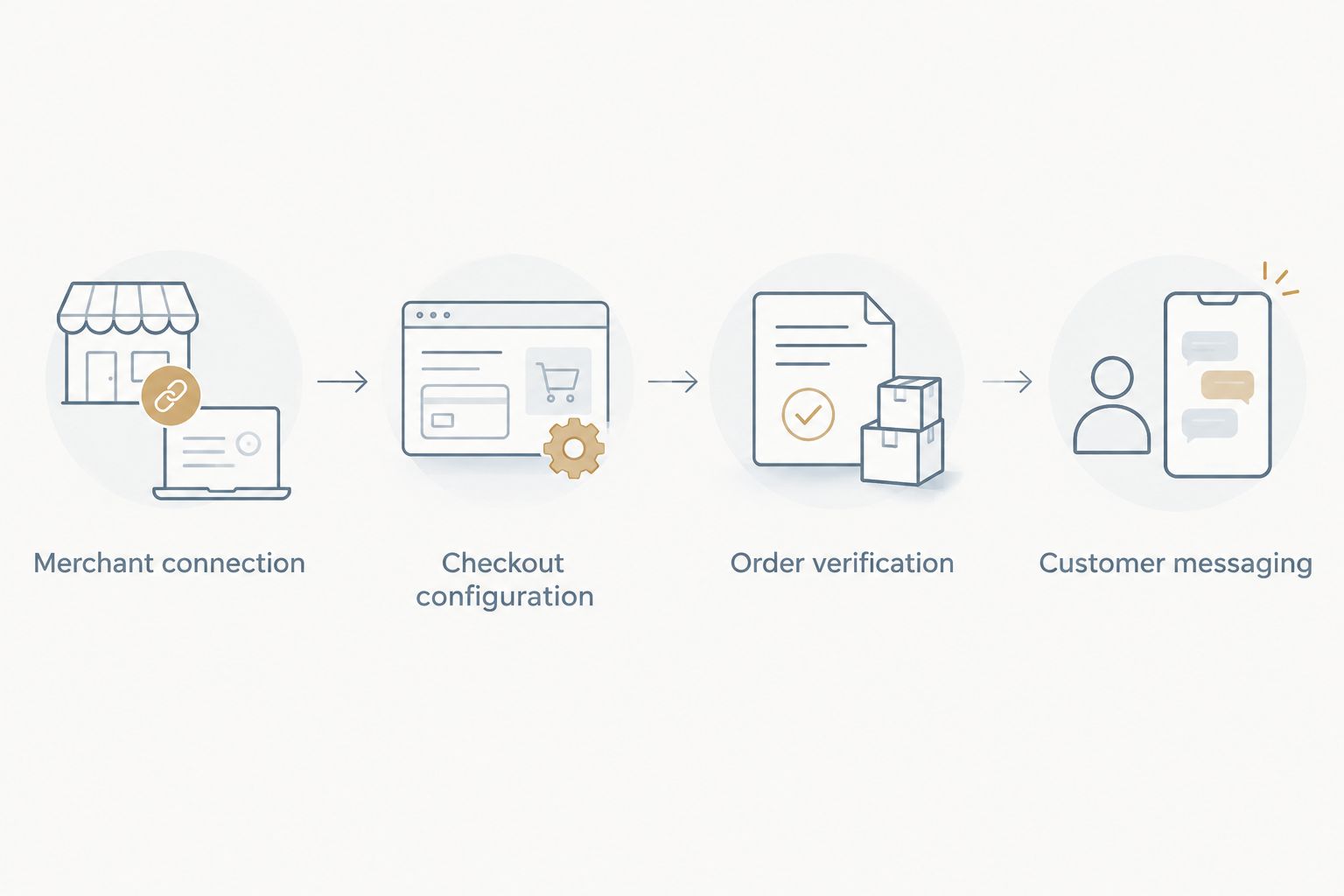
The setup sequence is simple: Merchant connection, Checkout configuration, Order verification, then Customer messaging. Keeping that order prevents a storefront announcement from getting ahead of the working payment connection.
Verify the payment flow before publishing customer-facing payment messages.
Order verification
The third configuration unit is the handoff back to the store. A provider screen and a store order are different records; verify the connection between them.
Run the provider's documented successful-payment test. If testing requires a real transaction, obtain authorization first and follow the merchant's accounting process.
Confirm that checkout reaches an order-confirmation screen. Then inspect the corresponding order in the store administration account.
Compare the store order with the provider transaction. Check the reference, payment status, and purchased items rather than relying on a customer-facing confirmation alone.
Run the documented cancellation or unsuccessful-payment test. Confirm that the store does not treat an incomplete payment attempt as a successfully paid order.
Review the integration's refund instructions before processing any refund. Start from the documented system of record rather than independently refunding in multiple places.
Use 3 test cases in the setup record: successful payment, customer cancellation, and an unsuccessful payment attempt. These are a verification checklist, not a claim about the store's current performance.
Expected result: each test has a clear outcome in the appropriate system, and a successful transaction corresponds to 1 matching order record in the store. Investigate duplicate orders or contradictory statuses before publishing payment messaging.
Do not mark a jewelry order paid merely because someone sends a screenshot. Confirm the payment against the store and provider records, and keep customer financial details out of routine support conversations.
Customer messaging
The final configuration unit is what shoppers read before reaching the payment screen. Explain the choice without promising acceptance, a particular repayment schedule, or terms that have not been verified.
Review any existing installment-payment text in the theme, cart, and product descriptions. Remove wording that conflicts with the actual checkout experience.
Use provider-approved messaging where the supported integration supplies it. Keep required disclosures with the message rather than separating them into an unrelated page.
Place explanatory text where it answers a real question. A payment explanation belongs near purchase decisions, not inside gemstone-care instructions.
Check the message on a phone and a desktop browser. Confirm that it does not cover product options, cart controls, or required checkout information.
Ask the payment-setting owner to approve the wording against the verified integration. Include this review in the 2026 launch record.
Expected result: the storefront explains the payment option accurately without suggesting that every shopper is approved.
For handmade gemstone jewelry, product details still deserve priority. Customers choosing a gift need to understand the piece before choosing how to pay for it; installment messaging should not replace material, fit, or care information.
Show installment information before checkout
A second, adjacent workflow is a supported on-site payment message. This explains the payment option earlier in the shopping journey, while the checkout integration handles the actual transaction.
Workflow
Best for
Benefit
Limitation
Checkout integration
Shoppers ready to choose a payment method
Connects the purchase to the provider's payment flow
Requires merchant activation and transaction eligibility
On-site payment message
Shoppers comparing how to pay before checkout
Explains the option near the purchase decision
Does not activate payments or establish approval
Configure checkout first; add explanatory messaging second. Both workflows have a purpose, but they are not interchangeable.
If the supported messaging component reads the selected product or cart automatically, use that documented connection. Do not manually type installment amounts into product descriptions: those statements can become inconsistent when the cart changes.
After changing a product selection or cart contents, check the message again. If the component cannot reflect the current purchase correctly, remove the inaccurate message and direct shoppers to the terms shown during checkout.
Repeat this check when changing the theme or replacing a messaging component. Treat the 2026 launch test as a baseline, not permanent proof that later changes work.
Troubleshooting
Afterpay does not appear at checkout
First inspect merchant activation and the integration's supported transaction conditions. Then compare the checkout's market and currency with the provider's documented requirements.
Test the standard cart route separately from accelerated checkout. Do not change a shopper's details to make a payment method appear; resolve configuration issues or explain that the method is not presented for that checkout.
The product page shows a message, but checkout does not
Treat the storefront message and payment connection as separate components. Confirm activation in payment administration, then check whether the messaging component is configured for the same supported market.
Remove misleading text while investigating. Reinstalling a visual widget does not repair a disconnected merchant account.
The shopper returns without a confirmed order
Check the store order history and provider transaction record before asking the shopper to retry. Determine whether the attempt was canceled, unsuccessful, or completed without the expected return screen.
Do not repeat a payment blindly. Escalate conflicting statuses through the platform or provider's authorized support process, using transaction references rather than sensitive payment details.
A payment attempt is declined
Separate a provider decision from a broken store connection. Follow the explanation presented in the payment flow and direct account-specific questions to the provider.
Do not promise that a different cart or another attempt will produce approval. A working integration still does not guarantee acceptance for every transaction.
A refund status looks inconsistent
Compare the original transaction reference and refund record in the systems named by the integration instructions. Confirm whether a refund has already been initiated before taking another action.
Avoid issuing separate refunds from multiple dashboards without establishing how the integration synchronizes them. Keep the customer informed using confirmed order information, not an assumed completion timeline.
Customize your workflow
Once payment verification is complete, expand the journey around how customers discover and choose jewelry. Keep purchase guidance distinct from payment eligibility.
For social shopping, use the Instagram shop connection guide as a separate workflow. A discovery channel still needs its own checkout-path review; a successful standard checkout does not verify every route into the store.
Give customer support a short response process: identify the checkout route, locate the order or attempted transaction, and direct provider-account questions to the provider. This is more useful than a blanket statement that installment payments always work.
FAQ
Does Parken Jewelry offer Afterpay at checkout?
Confirm Afterpay in the payment options presented for your checkout before relying on it. A product-page badge, search result, or setup guide does not establish that the method is active for your transaction.
Can a shopper turn on Afterpay for a jewelry order?
No. The merchant must activate a supported integration; shoppers can only select payment methods presented during checkout.
Does an Afterpay logo mean the payment method is connected?
No. A logo or installment message is storefront content, while a checkout integration connects the store to the payment provider.
Why does Afterpay appear for one checkout but not another?
Payment-method presentation depends on the supported integration and the conditions of the transaction. Check the checkout route, market, currency, and current provider requirements rather than assuming every cart is eligible.
Do I need an automation app to offer Afterpay?
Use the commerce platform's supported Afterpay payment integration, not a general-purpose automation app. An email workflow or custom script does not replace payment authorization.
What should I do if payment finishes but I do not see an order?
Check the store order record and provider transaction before attempting payment again. Give authorized support the transaction reference so the status can be investigated without exposing sensitive payment details.
Does merchant activation guarantee that a shopper is approved?
No. Merchant activation establishes the store's connection, while the provider determines whether a particular transaction is accepted under its current requirements.
One last thing
The most useful final check is a canceled checkout, not another screenshot of the payment logo. A cancellation shows whether the store handles an unfinished payment without confusing it with a paid jewelry order.
Before publishing any payment announcement, confirm both outcomes: a successful transaction produces the expected order, and an unfinished attempt remains clearly distinguishable. That is the difference between displaying a payment name and maintaining a checkout customers can understand.



Leave a comment